
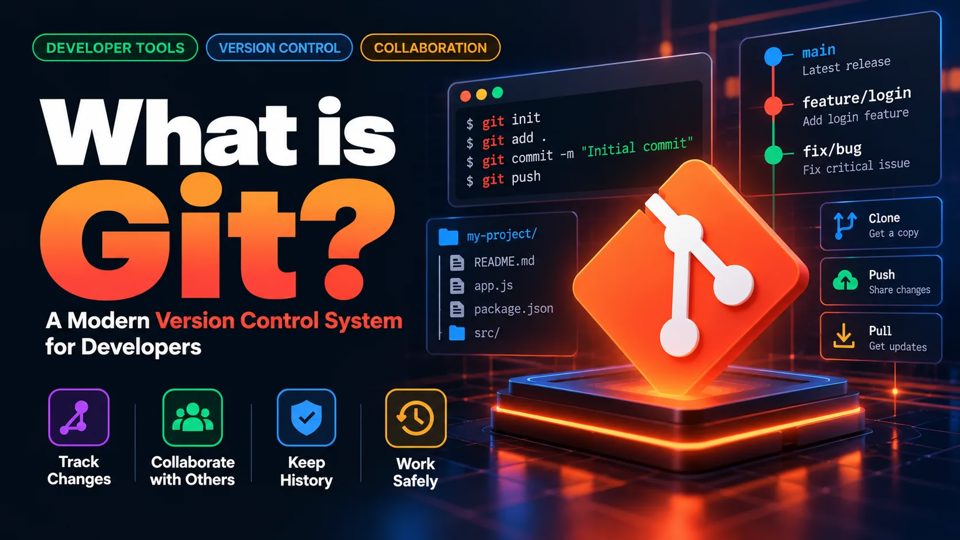
What is Git? A Beginner's Guide to Version Control

🌿 What is Git? A Beginner's Guide to Version Control
Have you ever made changes to your code, accidentally deleted something important, and wished you could go back to the previous version? 😅
This is a common problem in software development.
Imagine you're building a website. Everything works perfectly, but one day you decide to add a new feature.
After making some changes, your website suddenly stops working! 😱
What should you do?
Maybe you could:
- Try to remember your previous code.
- Manually undo all your changes.
- Restore an older backup (if you have one).
- Spend hours figuring out what went wrong.
This is where Git comes in! 🌿
1. What Is Git?
Git is a free, open-source distributed version control system that helps developers track changes in their code and manage different versions of a project.
In simple words, Git allows you to save the history of your project so you can review changes, compare versions, and restore previous work when necessary.
📸 Think of Git as a camera for your code.
Imagine taking pictures of your project every time you finish an important change.
Each picture represents a saved version of your code.
If something goes wrong, you can look at previous versions and recover your work.
Git works similarly, but instead of taking pictures, it records snapshots of your project using something called commits.
The main idea:
Write Code → Track Changes → Commit → View History → Restore When Needed
Git helps developers work confidently without worrying about losing previous versions of their code.
2. Why Do Developers Use Git?
Git makes software development easier, safer, and more organized.
✅ Version Control
Git keeps a history of your project changes, allowing you to review or restore previous versions.
✅ Team Collaboration
Multiple developers can work on the same project and combine their changes.
✅ Track Changes
You can see which files changed, what was modified, and who made each recorded commit.
✅ Branching
Developers can create separate branches to build new features without directly changing the main branch.
✅ Backup and Recovery
Git helps recover committed work. When repositories are also stored remotely, they provide an additional copy of the project.
✅ Works Offline
You can create commits, inspect history, and manage local branches without an internet connection.
3. Important Git Concepts
Before using Git, you should understand these basic concepts.
📁 Repository (Repo)
A repository is a project directory that Git uses to track files and their history.
Think of it as a folder containing your project and its version history.
📸 Commit
A commit is a saved snapshot of your project at a particular point in time.
For example, after adding a login page, you might create a commit with the message:
Add user login page
Each commit has a unique identifier and becomes part of your project's history.
🌿 Branch
A branch is a separate line of development.
Imagine your team is working on a website.
One developer works on the login feature while another works on the dashboard.
They can use different branches:
main— Main development linefeature/login— Login featurefeature/dashboard— Dashboard feature
This allows developers to work independently before combining their changes.
🔀 Merge
Merging combines changes from one branch into another.
For example, after completing the login feature, you can merge feature/login into main.
☁️ Remote Repository
A remote repository is another copy of your Git repository, often hosted on a server.
Popular hosting platforms include GitHub, GitLab, and Bitbucket.
⬆️ Push
Push sends your local commits to a remote repository.
⬇️ Pull
Pull retrieves changes from a remote repository and integrates them into your current branch.
4. Your First Git Commands
Let's try Git with some simple commands.
Step 1: Check Git Installation
Open your terminal and type:
git --versionThis command displays the installed Git version.
If Git isn't installed, download it from:
Step 2: Configure Your Git Identity
Before creating commits, configure your name and email.
git config --global user.name "Your Name"
git config --global user.email "you@example.com"
Git uses this information to identify the author of your commits.
Step 3: Create a New Project
Create a folder for your project.
mkdir my-first-project
cd my-first-project
Step 4: Initialize Git
git initThis command creates a new local Git repository in your project folder.
🎉 Congratulations! Your project is now ready for version control.
Step 5: Create Your First File
Create a file named README.md.
echo "# My First Git Project" > README.mdThis creates a simple Markdown file.
Step 6: Check Git Status
git statusThis command shows which files are new, modified, or staged for committing.
Step 7: Add Files to the Staging Area
git add README.mdThe git add command stages changes that you want to include in your next commit.
To stage all changes in the current directory and its subdirectories:
git add .Step 8: Create Your First Commit
git commit -m "Initial commit"This saves a snapshot of your staged changes in Git history.
📸 You've just created your first Git commit!
Step 9: View Commit History
git log --onelineExample output:
a1b2c3d Initial commitGit displays the commit identifier and message.
5. Git vs GitHub
Many beginners think Git and GitHub are the same thing.
But they are different!
🌿 Git
Git is a version control tool installed on your computer.
It tracks changes and manages project history locally.
☁️ GitHub
GitHub is an online platform for hosting Git repositories and collaborating with other developers.
| Feature | Git | GitHub |
|---|---|---|
| Type | Version control system | Git hosting platform |
| Installation | Installed locally | Primarily cloud-based |
| Main purpose | Track code changes | Host and collaborate on projects |
| Internet required | No, for local work | Yes, for online services |
| Branching | Supported | Uses Git branches |
| Collaboration | Supported | Adds pull requests, reviews, and other tools |
Simple example:
Git = A tool that saves your project history.
GitHub = A platform where you can store and share your Git repository online.
Other platforms, such as GitLab and Bitbucket, provide similar Git hosting capabilities.
6. Understanding the Git Workflow
Git has three important areas that beginners should understand.
1️⃣ Working Directory
This is where you create, edit, and delete files in your project.
2️⃣ Staging Area
This is where you select changes that should be included in your next commit.
3️⃣ Local Repository
This is where Git stores committed project history.
Basic Git Workflow:
Working Directory
       |
       | git add
       v
  Staging Area
       |
       | git commit
       v
Local Repository
       |
       | git push
       v
Remote Repository
(GitHub / GitLab)
For example:
git add .
git commit -m "Add homepage"
git push origin main
The final command assumes that your remote repository and main branch are already configured.
7. How to Work With Git Branches
Branches are one of Git's most powerful features.
Imagine you're developing a website and want to add a login page.
Instead of modifying the main branch directly, create a new branch.
Step 1: Create a New Branch
git switch -c feature/loginThis creates a new branch and switches to it.
Step 2: Check Your Current Branch
git branchExample output:
* feature/login
  main
The * indicates your current branch.
Step 3: Make Changes and Commit
After modifying your files:
git add .
git commit -m "Add login feature"
Step 4: Switch Back to Main
git switch mainStep 5: Merge Your Feature
git merge feature/loginThis combines the feature branch's changes into main.
If Git detects conflicting changes, you may need to resolve a merge conflict.
🎉 You've completed a basic Git branching workflow!
8. Where Is Git Used in Real Life?
Git is an essential tool in modern software development.
👨💻 Software Development
Developers use Git to manage application source code and track changes.
👥 Team Collaboration
Multiple developers contribute to the same project using branches and merge or pull requests.
🧪 Testing and Quality Assurance
Teams can review code changes and test features before merging them into the main branch.
🚀 DevOps and CI/CD
Git is commonly used with GitHub Actions, GitLab CI/CD, and Jenkins.
For example:
Developer Pushes Code → CI Pipeline Runs → Tests Execute → Application Deploys
☁️ Infrastructure as Code (IaC)
DevOps engineers use Git to manage infrastructure configuration files such as Terraform and Kubernetes manifests.
🔐 Code Review
Teams use Git hosting platforms to review changes before merging them into production branches.
9. Common Beginner Mistakes
❌ Committing passwords, API keys, or secrets
✅ Keep sensitive information out of Git and use secure secret management tools.
❌ Making changes directly on the main branch for every feature
✅ Use feature branches when working on changes that require review or isolation.
❌ Writing unclear commit messages
Example:git commit -m "update"
✅ Write meaningful messages.
Example:git commit -m "Fix login validation error"
❌ Committing unnecessary files
✅ Use .gitignore to exclude files such as temporary files, local environment files, and generated dependencies.
❌ Forgetting to commit changes
✅ Make commits regularly after completing meaningful changes.
❌ Using force push without understanding the consequences
✅ Avoid rewriting shared branch history unless you understand the impact and coordinate with your team.
10. What Should You Learn Next?
Once you understand the basic Git commands, continue learning:
- Git Basics — Learn
init,add,commit,status, andlog. - Git Branching — Create, switch, and delete branches.
- Git Merge and Rebase — Understand how to combine changes.
- Git Remote Repositories — Learn
clone,fetch,pull, andpush. - GitHub and GitLab — Collaborate using pull requests and merge requests.
- Git Conflict Resolution — Learn to resolve merge conflicts.
- Git in CI/CD — Connect Git repositories with automated pipelines.
Remember:
🌿 Git helps track changes in your code.
📸 Commits save snapshots of your project.
🌳 Branches allow independent development.
🔀 Merge combines changes from different branches.
☁️ GitHub and GitLab help teams host and collaborate on Git repositories.
🚀 Git is an essential foundation for software development and DevOps.